An OPC DA client that has read data from a remote server for years fails after a routine Windows update. It reports Access denied, the list of remote OPC servers comes back empty, or the connection no longer restores after a restart. In most cases the cause is the same: DCOM hardening enforced by Microsoft since March 2023.
OPC Classic, meaning OPC Data Access (DA), Historical Data Access (HDA) and Alarms and Events (AE), relies on Microsoft COM (Component Object Model) on a single machine and on DCOM (Distributed COM) as soon as the client and the server run on different machines. This guide shows how to confirm that DCOM hardening is the cause, how to fix it with the least possible change, and when it is better to remove DCOM from the network path altogether.
Short answer
Windows machines that receive security updates now reject remote DCOM activation requests below the Packet Integrity authentication level. An OPC client that asks for a lower level fails, usually with error 0x80070005 (Access denied), and the OPC server machine logs Event ID 10036. The fix belongs on the client side: patch the client machine, raise its default authentication level, or update the OPC client. When none of these is possible, OPC tunneling or an OPC UA wrapper takes DCOM off the network.
What DCOM hardening changed
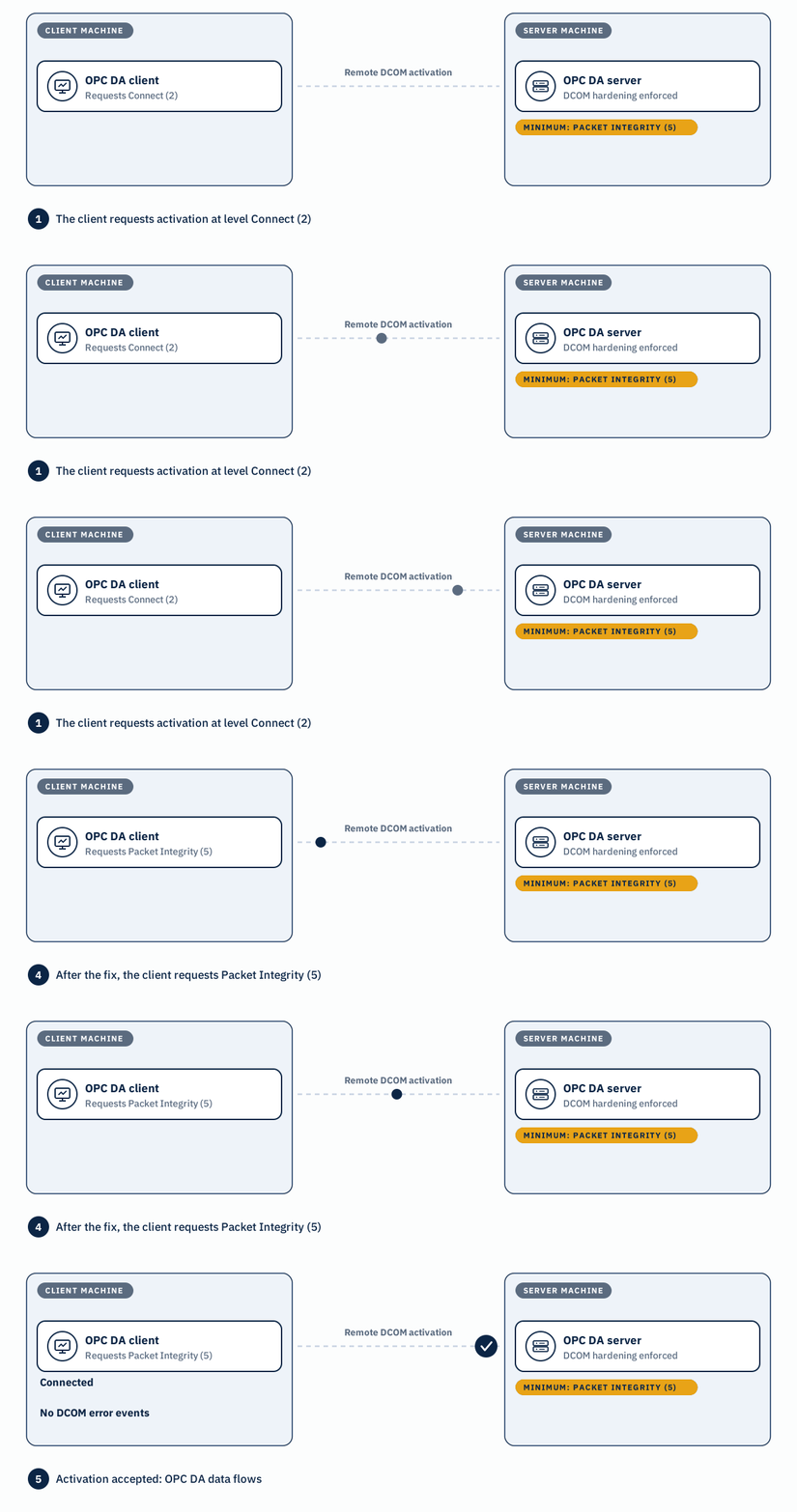
Microsoft closed a DCOM authentication bypass, CVE-2021-26414, with the hardening described in KB5004442. A hardened machine refuses any authenticated remote activation request below RPC_C_AUTHN_LEVEL_PKT_INTEGRITY (Packet Integrity, level 5). Many OPC DA clients were written or configured to activate servers at lower levels, such as Connect (level 2). Microsoft rolled the change out in three phases:
| Update release | Hardening behavior | Can it be turned off? |
| June 8, 2021 | Available, off by default | Yes, with a registry value |
| June 14, 2022 | On by default | Yes, with a registry value |
| March 14, 2023 | Always on | No |
Three facts drive the whole troubleshooting process:
- The check runs on the OPC server machine, but the fix belongs to the client. The client chooses the authentication level of its request.
- Patched Windows clients usually adapt on their own. Since the January 2023 cumulative updates, Windows raises activation requests from Windows DCOM clients to Packet Integrity automatically. Failures concentrate on clients that are not patched, run an older Windows version, or set a lower level themselves.
- Local connections are not affected. When the OPC client and server run on the same machine, they use COM, not remote DCOM activation.
DCOM hardening or something else?
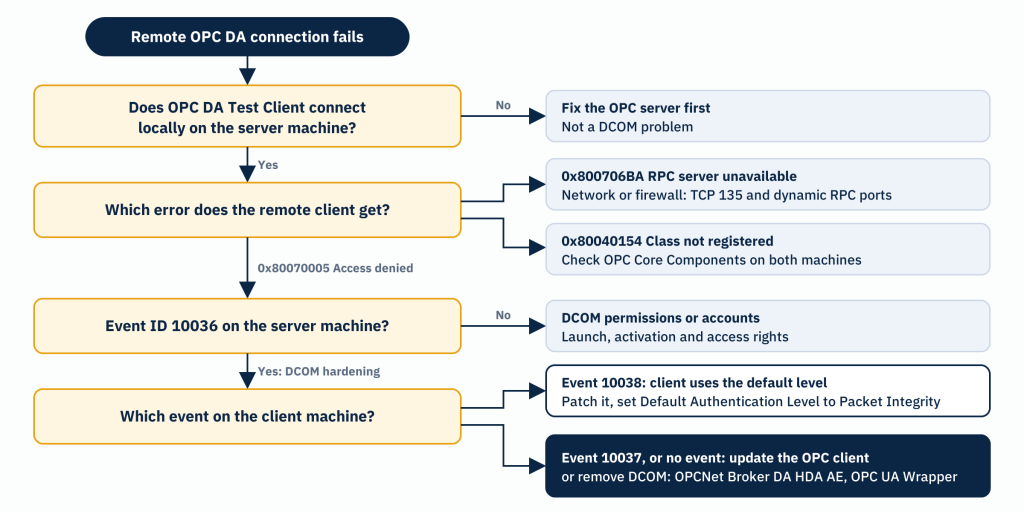
Several DCOM failures look alike from the OPC client. Use the error code and the event logs to separate them before changing any setting:
| What the OPC client shows | Likely cause | DCOM hardening? |
| 0x80070005 Access denied, and Event ID 10036 on the server machine | Activation rejected below Packet Integrity | Yes |
| No OPC servers listed when browsing the remote machine, and Event ID 10036 on the server machine | Activation of the OPC server browser (OPCEnum) rejected | Yes |
| 0x80070005 Access denied, no Event ID 10036 | DCOM launch, activation or access permissions, or an account mismatch | No |
| 0x800706BA The RPC server is unavailable | Network path: TCP port 135 or the dynamic RPC (Remote Procedure Call) port range blocked, or the host is unreachable | No |
| 0x80040154 Class not registered | OPC server or OPC Core Components not registered | No |
| Connects and browses, but values never update | Callbacks from the server to the client blocked by permissions or the client-side firewall | No |
For the causes that are not hardening, the DCOM settings guide for OPC communications walks through each Component Services dialog.
Step 1: Confirm the cause
- Test the OPC server locally. Run the free OPC DA Test Client on the OPC server machine and connect to the server there. If the local connection fails, fix the OPC server first: the problem is not DCOM. On locked-down machines, the installation-free Portable Edition of the OPC DA Test Client avoids installing software.
- Check the System log on the server machine. In Event Viewer, open Windows Logs, System, and filter on source DistributedCOM and Event ID 10036. The event names the domain, user and IP address of the client that was refused.
- Check the System log on the client machine. Event ID 10037 means the application explicitly sets a level below Packet Integrity. Event ID 10038 means it uses a default level below Packet Integrity. Both events give the application path, the process ID and the CLSID (class identifier) it tried to activate, which you can match to the OPC server or to OPCEnum.
- Isolate the OPC server if in doubt. Install the free OPC Server Simulators (one product covering DA, HDA and AE) on the same server machine and connect to it from the remote client. If the simulator fails the same way, the problem sits between the two machines, not in your OPC server.
Client events 10037 and 10038 exist only on Windows versions that received the 2021 DCOM updates. A client on an unpatched or out-of-support system logs nothing, so Event ID 10036 on the server is your only evidence.
Step 2: Fix the client with the least change
- Install current Windows updates on the client machine. On a supported and patched client, Windows raises the activation level automatically, and most Event ID 10038 failures disappear. Restart the OPC client application afterward.
- Raise the default authentication level on the client. If the OPC client uses the system default (Event ID 10038), run dcomcnfg on the client machine, open Component Services, Computers, My Computer, Properties, Default Properties, and set Default Authentication Level to Packet Integrity. Then restart the OPC client or the machine. Many older OPC DCOM guides recommend None or Connect here. Those values now cause the failure.
- Update the OPC client application. Event ID 10037 means the application requests a lower level itself, so no Windows setting will fix it. Ask the vendor for a version that supports Packet Integrity. The same applies to clients on operating systems that no longer receive updates, and to OPC DA clients that implement their own DCOM stack, such as some Java or Linux-based clients.
- Recheck accounts and permissions. At Packet Integrity, the client always authenticates. In a workgroup, the account running the OPC client must exist on the server machine with the same password. In a domain, it needs launch, activation and access rights on the OPC server and on OPCEnum.
Workarounds to avoid
- The RequireIntegrityActivationAuthenticationLevel registry value. It only switched the hardening off during the first two phases. On machines updated since March 2023, it has no effect.
- Uninstalling or blocking Windows updates on the OPC server machine. This reopens CVE-2021-26414 and only postpones the problem, because every later cumulative update includes the hardening.
- Anonymous activation. The hardening does not apply to unauthenticated activation, so granting anonymous launch rights can make a connection work again. It also removes authentication from the OPC server. Treat it as a security finding, not a fix.
Step 3: Remove DCOM from the network path
Fixing the client is the right first move, but it is not always possible or durable. Consider removing remote DCOM when:
- The OPC client software cannot be updated or replaced.
- OPC traffic crosses a firewall between network zones, where DCOM needs TCP port 135 plus a dynamic port range.
- Keeping accounts and DCOM permissions aligned across machines has become an ongoing maintenance burden.
- The OPC server host is due for an upgrade. Windows Server 2016 extended support ends on January 12, 2027, and many OPC Classic servers still run on it.
Two Integration Objects products remove remote DCOM while keeping your existing OPC servers in place.
OPC tunneling with OPCNet Broker DA HDA AE
OPCNet Broker DA HDA AE installs a client-side component on the OPC client machine and a server-side component on the OPC server machine. Each OPC application talks to its local component over COM, so no remote DCOM activation takes place. The two components carry OPC DA, HDA and AE traffic over one open TCP port, with redundancy and automatic reconnection. Neither the OPC client nor the OPC server changes, which makes it the fit for clients that cannot be updated. It is licensed per machine and comes with a 30-day free trial. For background, read what OPC tunneling is and common OPC tunneling issues.

OPC UA access with the OPC UA Wrapper
The OPC UA Wrapper runs on the OPC server machine and exposes OPC Classic DA, HDA and AE servers to OPC UA (Unified Architecture) clients. The client connects over OPC UA, which does not use DCOM. This fits when the client side already supports OPC UA, for example a recent SCADA (Supervisory Control and Data Acquisition) system or historian, and it is a practical first step in an OPC UA migration. It is licensed per machine and comes with a 30-day free trial.

Which option fits your site
| Your situation | Recommended |
| The OPC client supports OPC Classic only and cannot change | OPCNet Broker DA HDA AE |
| The OPC client supports OPC UA | OPC UA Wrapper |
| Data must flow in both directions between OPC Classic and OPC UA systems | OPC UA Bridge |
| OPC is one of several protocols, sites or IT systems to connect | SIOTH®: a SIOTH node on the OPC server host reads the server locally and forwards data to a SIOTH master node |
Troubleshooting checklist
- Confirm the OPC server works locally with OPC DA Test Client.
- Look for Event ID 10036 in the System log of the server machine.
- Look for Event ID 10037 or 10038 in the System log of the client machine.
- Install current Windows updates on the client and restart the OPC client.
- Set Default Authentication Level to Packet Integrity on the client.
- Update the OPC client if it sets its own authentication level.
- Verify accounts and DCOM permissions on both machines.
- If the client cannot change, remove DCOM from the network path.
Related reading
- What is DCOM
- DCOM settings for OPC communications
- DCOM Server Security Feature Bypass (CVE-2021-26414): what OPC users need to know
- What is OPC tunneling
- OPC UA migration: the complete guide
Frequently asked questions
Which machine needs the fix?
Usually the OPC client machine. The OPC server machine enforces the rule and logs Event ID 10036, but the client decides which authentication level it requests.
Are OPC HDA and OPC AE affected too?
Yes. All OPC Classic specifications use DCOM for remote connections, so the same rule applies to DA, HDA and AE clients.
Are local OPC connections affected?
No. A client and server on the same machine use COM, not remote DCOM activation.
Does OPC UA have the same problem?
No. OPC UA does not use COM or DCOM. It uses its own TCP-based transport and certificate-based security.