Configuring DCOM settings for OPC is one of the most common and most frustrating tasks in industrial automation. Done correctly, it enables reliable remote communication between OPC Classic clients and servers. Done incorrectly, it produces cryptic “access denied” errors, RPC failures, and firewall headaches that can take days to diagnose.
This guide explains what DCOM is, why OPC Classic depends on it, how to configure DCOM settings step by step for OPC communications, how to fix the most common errors, and critically how to evaluate whether eliminating DCOM entirely is the better long-term choice for your environment.
What is DCOM?
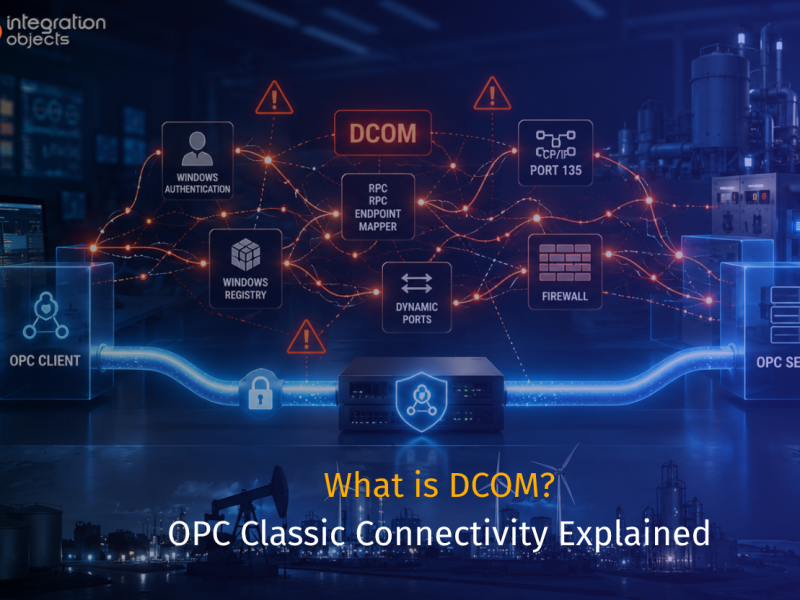
DCOM (Distributed Component Object Model) is a Microsoft protocol that extends COM (Component Object Model) across a network. It enables applications running on different Windows machines to communicate with each other using Remote Procedure Calls (RPC). DCOM handles authentication, marshalling of data, and the management of remote object lifetimes all transparently to the application.
In practical terms, DCOM is the layer that allows an OPC client on one machine to discover and call an OPC server object running on a completely different machine, as if it were local.
Why does OPC Classic require DCOM?
OPC Classic including OPC DA (Data Access), OPC HDA (Historical Data Access), and OPC AE (Alarms & Events) was built on Microsoft’s COM/DCOM technology. When an OPC client and server run on the same machine, they communicate via COM over shared memory. The moment communication crosses a network boundary to a remote machine, DCOM takes over.
This architecture was a practical choice in the 1990s when OPC was designed: DCOM was the standard Microsoft mechanism for distributed Windows applications. It provided automatic service discovery, security integration with Windows user accounts, and transparent remote object access. However, DCOM was designed for closed, trusted networks not the increasingly interconnected IT/OT environments of today.
The result is that any remote OPC Classic connection depends entirely on DCOM being correctly configured on both machines. A single misconfigured permission, a blocked firewall port, or an authentication mismatch is enough to prevent the connection entirely.
What DCOM settings need to be configured for OPC?
DCOM configuration for OPC involves settings at two levels: machine-wide settings that apply to all DCOM communication on the Windows host, and application-specific settings that apply to the OPC server component itself. Both levels are managed through dcomcnfg — the Windows DCOM configuration tool, accessible via Start → Run → dcomcnfg.
Machine-wide DCOM settings (Component Services)
These settings apply to all DCOM traffic on the machine and must be configured on both the OPC server and OPC client machines:
Authentication level: Set to “Connect” as the minimum for basic OPC communications. Note: as of the Microsoft KB5004442 hardening update (enforced since March 2023), remote DCOM connections now require “Packet Integrity” as the minimum level. Any OPC client that does not support this level will be rejected by a patched server.
Enable DCOM: In dcomcnfg, navigate to Component Services → Computers → My Computer → Properties → Default Properties tab. Ensure “Enable Distributed COM on this computer” is checked.
Default authentication level: Set to “Connect” under Default Properties.
Default impersonation level: Set to “Identify” under Default Properties.
Access permissions: Under the COM Security tab, ensure that the user account running the OPC client application has both local and remote access permissions. For workgroup environments (non-domain), you must create matching user accounts with identical usernames and passwords on both machines.
Launch and activation permissions: The user account running the OPC client must have remote launch and remote activation permissions, either granted directly or through group membership.
Application-specific DCOM settings (for the OPC server)
Each OPC server registers itself as a DCOM application. To configure its specific settings:
- Open
dcomcnfgand navigate to Component Services → Computers → My Computer → DCOM Config - Locate your OPC server in the list (it will appear by its registered application name)
- Right-click → Properties → Security tab
- Configure Launch and Activation Permissions: grant the remote OPC client user account “Remote Launch” and “Remote Activation” rights
- Configure Access Permissions: grant the remote OPC client user account “Remote Access” rights
- Under the Identity tab: set the account the OPC server runs as — typically “The interactive user” for servers that need to interact with hardware, or a dedicated service account for headless deployments
Firewall port configuration for DCOM
DCOM uses TCP port 135 (the RPC Endpoint Mapper) as its initial contact point, and then negotiates a dynamic high-numbered port for the actual data transfer. This dynamic port allocation is the primary reason DCOM is difficult to use across firewalls.
To enable DCOM through a firewall for OPC:
- Open TCP port 135 inbound on the OPC server machine
- Either open the full dynamic port range (TCP 1024–65535) — which is rarely acceptable from a security perspective — or restrict DCOM to a fixed port range using the Windows registry (
HKEY_LOCAL_MACHINE\Software\Microsoft\Rpc\Internet, setPortsto a specific range andPortsInternetAvailabletoY) - Open that fixed port range on the firewall
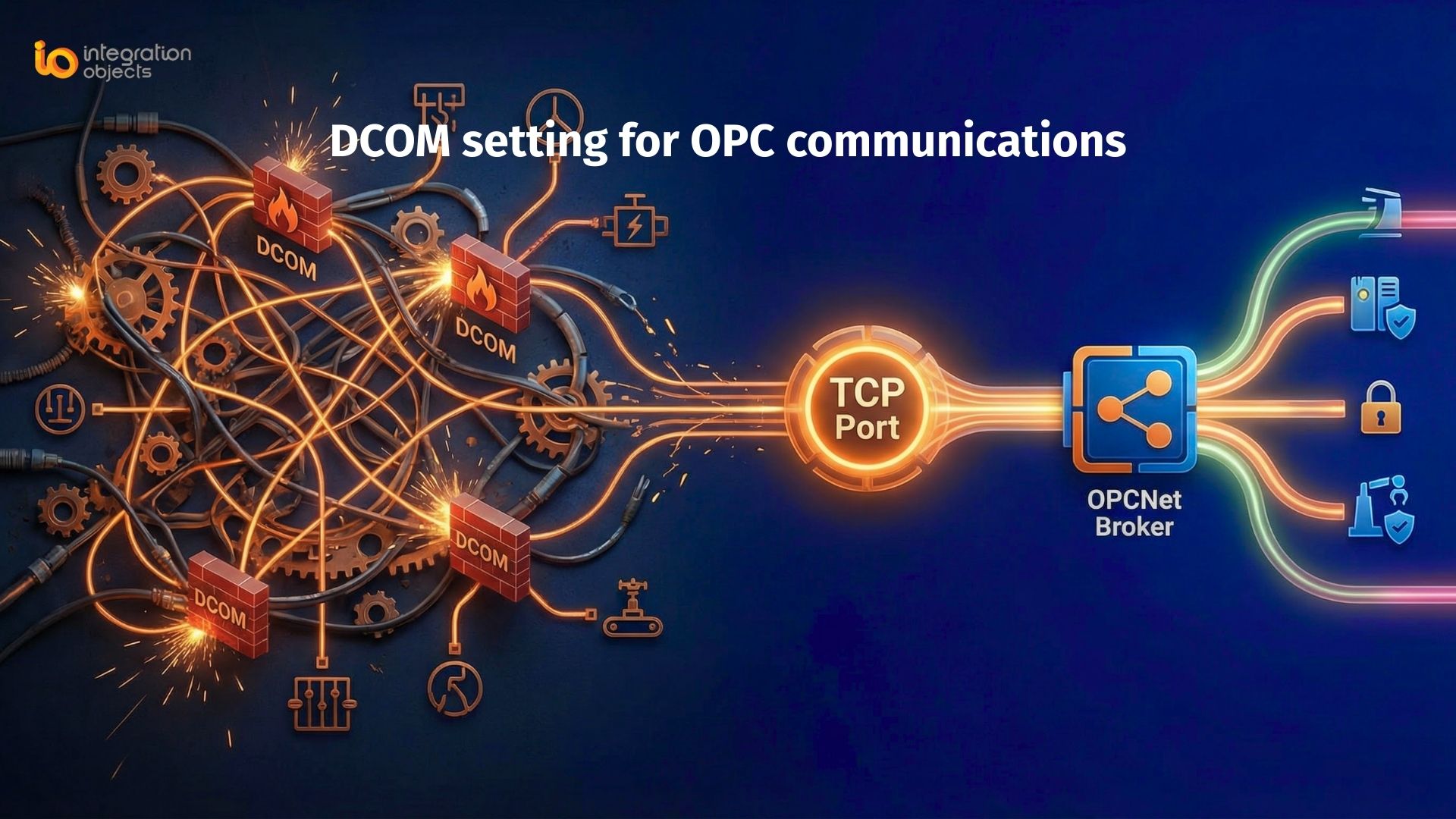
For most industrial environments, managing DCOM through a firewall this way is operationally complex and creates a large attack surface. This is one of the primary reasons OPC tunneling solutions like OPCNet Broker® exist.
Common DCOM errors for OPC and how to fix them
Even with configuration in place, DCOM errors in OPC environments are common. Here are the most frequently encountered ones:
“Access is denied” (Error 0x80070005) This is the most common DCOM error. It almost always means the user account running the OPC client does not have the required launch, activation, or access permissions on the OPC server machine. Check dcomcnfg permissions on both the machine-wide COM Security settings and the OPC server application’s specific DCOM settings.
In workgroup (non-domain) environments, also verify that a local user account exists on the OPC server machine with the exact same username and password as the account running the OPC client.
“The RPC server is unavailable” (Error 0x800706BA) This typically means the OPC client cannot reach the OPC server machine’s DCOM endpoint. Check that TCP port 135 is open and reachable between the two machines. Also verify that the Windows Firewall on the OPC server machine is not blocking incoming DCOM connections, and that the “DCOM Server Process Launcher” Windows service is running.
“Class not registered” (Error 0x80040154) The OPC server’s CLSID (the COM class identifier) is not registered on the OPC client machine. For remote OPC connections, the OPC server must be registered in the client machine’s registry — either by installing OPC Core Components on the client, or by manually registering the server’s CLSID. Many OPC client applications handle this automatically during their installation, but it is worth verifying.
“Authentication failure” after Windows updates (post March 2023) If OPC connections that previously worked began failing after a Windows update, the likely cause is the DCOM hardening enforcement introduced in KB5004442. The required authentication level has been raised to Packet Integrity, and older OPC client applications that do not support this level will be rejected. See our detailed guide on the DCOM server security update and its impact on OPC communications for remediation options.
“OPC server not found” or browser returns empty list The OPC server is either not running, not registered as a DCOM application, or the OPC client does not have browse permissions. Verify the OPC server service is running on the server machine, check access permissions in dcomcnfg, and ensure OPC Core Components are installed on both machines.
DCOM configuration checklist for OPC
Use this checklist before going live with any remote OPC Classic connection:
- OPC Core Components installed on both client and server machines
- DCOM enabled on both machines (Component Services → My Computer → Properties)
- Default authentication level set to “Connect” (or “Packet Integrity” if KB5004442 is applied)
- Default impersonation level set to “Identify”
- Remote access permissions granted to the OPC client user account (machine-wide COM Security)
- Remote launch and activation permissions granted (machine-wide COM Security)
- OPC server application-specific DCOM permissions configured (via DCOM Config in Component Services)
- TCP port 135 open through all firewalls between client and server
- Dynamic RPC ports either opened or restricted to a fixed range and that range opened in the firewall
- Matching user accounts with identical credentials exist on both machines (workgroup environments only)
- Windows Firewall exceptions created for DCOM on both machines
- OPC server service confirmed running on the server machine
Is there a better alternative to DCOM for OPC?
For many industrial environments, the honest answer is yes. DCOM configuration is complex, fragile across network changes, difficult to secure to modern standards, and since Microsoft’s 2023 hardening enforcement, increasingly incompatible with older OPC Classic clients without additional remediation.
Two proven alternatives eliminate DCOM from OPC communications entirely:
OPC tunneling with OPCNet Broker®
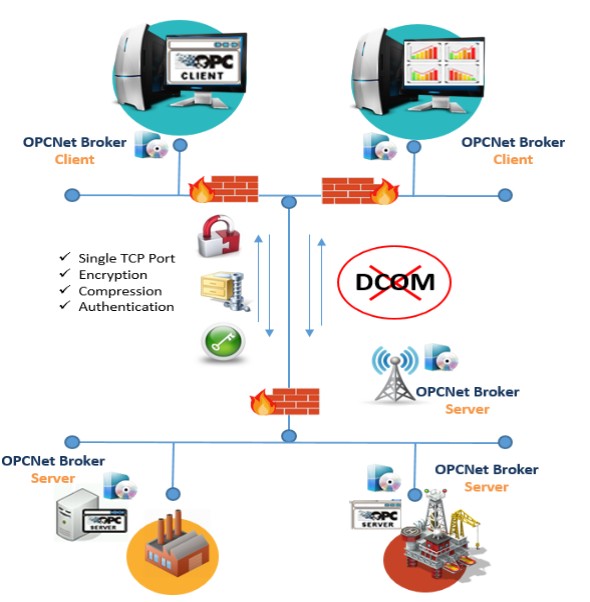
OPCNet Broker® replaces DCOM as the transport layer for OPC Classic DA, HDA, and AE communication. It encapsulates all OPC traffic inside a single, configurable TCP port making firewall configuration simple, predictable, and auditable.
Because the OPC client connects locally to OPCNet Broker® on its own machine (a local COM connection that bypasses DCOM entirely), neither machine requires any DCOM configuration for remote OPC. Your existing OPC client and server software continue to work unchanged.
OPCNet Broker® also adds security capabilities that DCOM cannot provide: data encryption without requiring certificates, user authentication, IP whitelisting, and tag-level access control down to individual OPC items.
This is the right choice when you want to keep your OPC Classic architecture intact and eliminate all DCOM complexity immediately, without modifying any existing software.
Learn more about OPCNet Broker® →
Frequently asked questions about DCOM settings for OPC
How do I open DCOM settings in Windows?
Open the DCOM configuration tool by pressing Win + R, typing dcomcnfg, and pressing Enter. This opens Component Services. Navigate to Component Services → Computers → My Computer for machine-wide settings, or to Component Services → Computers → My Computer → DCOM Config to find and configure your specific OPC server application.
What ports does DCOM use for OPC communications?
DCOM always uses TCP port 135 for its initial RPC Endpoint Mapper contact. After that, it dynamically negotiates a high-numbered port (from the range 1024–65535 by default) for the actual data connection. You can restrict this dynamic range to a smaller fixed set using the Windows registry, which makes firewall configuration more manageable.
Why do my DCOM settings for OPC keep breaking after Windows updates?
Since March 2023, Microsoft permanently enforced DCOM authentication hardening (KB5004442) on all patched Windows systems. This raised the minimum authentication level to Packet Integrity, which breaks older OPC client applications that don't support it. There is no registry override to disable this enforcement. The options are to update your OPC client software, use OPC tunneling to bypass DCOM, or migrate to OPC UA.
What is the most common DCOM error for OPC and how do I fix it?
The most common error is 0x80070005 "Access is denied." It means the OPC client's user account lacks the required remote launch, activation, or access permissions on the OPC server machine. Fix it by opening dcomcnfg on the OPC server machine, checking both the machine-wide COM Security settings and the OPC server's application-specific DCOM settings, and ensuring the correct account has remote permissions at both levels.
Can I configure DCOM for OPC across different Windows domains?
Yes, but it requires additional steps. You need to establish a trust relationship between the domains, or create matching user accounts with identical credentials on both machines if operating in a workgroup setup. In practice, cross-domain and cross-workgroup DCOM configuration is one of the most error-prone scenarios in OPC Classic deployments it is a common trigger for teams to move to OPC tunneling instead.
What is the difference between COM and DCOM for OPC?
COM is used when the OPC client and server are on the same machine. They communicate through shared memory with no network involvement. DCOM extends this to remote machines over a network, adding authentication, marshalling, and RPC mechanics. For OPC, COM is fast and reliable; DCOM is where configuration complexity and connectivity problems begin.